Tuesday, March 5, 2019

Reformatting a Personal Computer


REFORMATTING A PERSONAL COMPUTER


STEPS TO REFORMAT A PERSONAL COMPUTER


1. Start your PC and press key F2, F12 or delete key (Depends on your PC model). 

Your PC BIOS settings will be displayed. Find boot menu. In boot device priority select CD-ROM as first boot device.


2. Your PC will boot from CD and windows installation will start. Press Enter at this screen.


3. Accept License agreement by pressing F8 key.


4. Delete the partitions.


5. Create the partitions.


6. Define the size of partitions.


7. Now select your desired partition for installation of Windows XP and press enter.


8. Choose to format the partition. Choose NTFS file system quick. 


9. Setup will format the partition.


10. After formatting, setup will start copying files on to the hard disk.


11. After copying of files, setup will start installing Windows. 


12.  Select desired language and regional settings, when prompted by setup.


13. Enter windows key.


14. Type a name for your computer.


15.  Select time and date settings and time zone according to your country.


16.  Provide network settings for networking pc's or select typical settings and press enter.


17.  Setup will install devices and register components.


 18.   After completion setup will do a cleanup of files and will restart your pc automatically. At this stage you can remove CD from drive.


TO CREATE A PARTITION

What is DISK PARTITIONING?

Disk partitioning is the creation of one or more regions on a  hard disk or other secondary storage, so that an operating system  can manage information in each region separately.

What is PARTITIONING?
Partitioning is typically the first step of preparing a newly manufactured disk, before any files or directories have been created. 

Remember:
  1 KB  = thousand bytes
    1 MB    = million bytes
    1 GB    = billion bytes
    1 TB    = trillion bytes

Remember:
   1 KB  = 1024 bytes
   1 MB    = 1024 KB
   1 GB    = 1024 MB
   1 TB    = 1024 GB


TO CREATE 
A PARTITION

Original size/capacity =  40995 MB

P1 - 50 %  =  40995 x .50  = 20498
P2 - 50 %  =  40995 x .50 = 20498

P1 - 25 %  =  40995 x .25 = 10249  
P2 - 75 %  =  40995 x .75 = 30746

P1 - 25 GB  =  25 x 1024  = 25600
P2 - 25  %  =  40995 x .25 = 10249

P3  - The rest  

How To Share File and Printer in a Computer Network?


PRELIMINARY STEPS

1.  Create an IP address
2.  Configure the IP address
3.  Set Windows firewall settings
4.  Set up a home or small office network


SET WINDOWS 
FIREWALL SETTINGS

TURN OFF FIREWALL
Firewall - is a network security system that monitors and controls incoming and outgoing network traffic based on predetermined security rules.


SET UP A HOME OR SMALL OFFICE NETWORK
NETWORK SETUP WIZARD

Network Setup Wizard - is a built-in feature of windows that let you setup a network for computers running Microsoft windows operating systems.


SHARING FILE
ON A NETWORK
(Server)

1.  Place the file inside the folder
2.  Right click the folder
3.  Click Properties
4.  Click Sharing
5.  Click Share this folder on the network
6.  Click Apply
7.  Click OK


CHECKING THE FILE
(Client)

1. Click Start button
2. Click Run
3. Then type \\[IP address of server]

SHARING PRINTER
ON A NETWORK
(Server)


1.  Click Control Panel
2.  Click Add Printer
3.  Right click Printer
4.  Click Sharing
5.  Click Share this printer
6.  Click Apply
7.  Click OK


CONNECTING PRINTER
ON A NETWORK
(Client)

1. Click Run
2. Then type \\[IP address of Server]
3. Double click Printers and Faxes
4. Right click Printer

5. Click Connect

Tuesday, January 15, 2019

What is a Network Address?


NETWORK ADDRESS

Image result for ipv4

Network Address is an identifier for a node or host on a telecommunications network. Network addresses are designed to be unique identifiers across the network, although some networks allow for local, private addresses or locally administered addresses that may not be unique. Special network addresses are allocated as broadcast or multicast addresses. These too are not unique.
  • it is more commonly known as IP address
  • it is the numeric address of a computer connected to a network
  • it is a set of numbers, called as "octets" or "dotted decimal" notation, that identifies any network device
Image result for network address

IP address

IP stands for "Internet Protocol" There are two versions of IP that currently coexist in the global Internet: IP version 4 (IPv4) and IP version 6 (IPv6). IP addresses are made up of binary values and drive the routing of all data over the Internet. IPv4 addresses are 32 bits long, and IPv6 addresses 128 bits long.


Image result for example of ip address


Two Versions of IP 

Image result for ipv6
1. IPv4 (IP version 4)  
Image result for ipv4
  • Internet Protocol Version 4 (IPv4) is the fourth revision of the Internet Protocol and a widely used protocol in data communication over different kinds of networks. IPv4 is a connectionless protocol used in packet-switched layer networks, such as Ethernet. It provides the logical connection between network devices by providing identification for each device. There are many ways to configure IPv4 with all kinds of devices – including manual and automatic configurations – depending on the network type.
  • IPv4 is based on the best-effort model. This model guarantees neither delivery nor avoidance of duplicate delivery; these aspects are handled by the upper layer transport.


2. IPv6 (IP version 6)
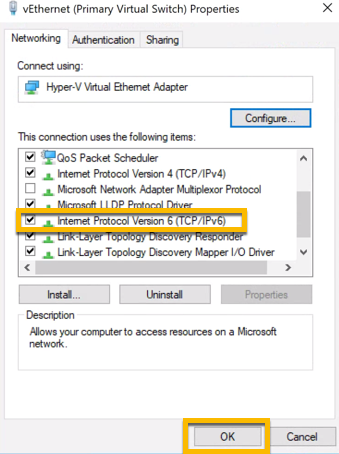
Image result for ipv6
  • IPv6 (Internet Protocol version 6) is a set of specifications from the Internet Engineering Task Force (IETF) that's essentially an upgrade of IP version 4 (IPv4). The basics of IPv6 are similar to those of IPv4 -- devices can use IPv6 as source and destination addresses to pass packets over a network, and tools like ping work for network testing as they do in IPv4, with some slight variations.
  • The most obvious improvement in IPv6 over IPv4 is that IP Adresses are lengthened from 32 bits to 128 bits. This extension anticipates considerable future growth of the Internet and provides relief for what was perceived as an impending shortage of network addresses. IPv6 also supports auto-configuration to help correct most of the shortcomings in version 4, and it has integrated security and mobility features.

Binary

Image result for Binary digit
Binary digit, or bit, is the smallest unit of information in a computer. It is used for storing information and has a value of true/false, or on/off. An individual bit has a value of either 0 or 1, which is generally used to store data and implement instructions in groups of bytes. A computer is often classified by the number of bits it can process at one time or by the number of bits in a memory address. Many systems use four eight-bit bytes to form a 32-bit word.
The value of a bit is typically stored above or below an allocated level of an electrical charge within a capacitor inside a memory module. For devices that use positive logic, value 1 (true value or high) is positive voltage relative to the electrical ground and value 0 (false value or low) is 0 voltage.

Classes of IP Address

TCP/IP defines five classes of IP addresses: class A, B, C, D, and E. Each class has a range of valid IP addresses. The value of the first octet determines the class. IP addresses from the first three classes (A, B and C) can be used for host addresses. The other two classes are used for other purposes (class D for multicast and class E for experimental purposes).
The system of IP address classes was developed for the purpose of Internet IP addresses assignment. The classes created were based on the network size. For example, for the small number of networks with a very large number of hosts, the Class A was created. The Class C was created for the numerous networks with the small number of hosts.
Image result for classes of ip address

For the IP addresses from Class A, the first 8 bits (the first decimal number) represent the network part, while the remaining 24 bits represent the host part. For Class B, the first 16 bits (the first two numbers) represent the network part, while the remaining 16 bits represent the host part. For Class C, the first 24 bits represent the network part, while the remaining 8 bits represent the host part.
Consider the following IP addresses:
  • 10.50.120.7 – because this is a Class A address, the first number (10) represents the network part, while the remainder of the address represents the host part (50.120.7). This means that, in order for devices to be on the same network, the first number of their IP addresses has to be the same for both devices. In this case, a device with the IP address of 10.47.8.4 is on the same network as the device with the IP address listed above. The device with the IP address 11.5.4.3 is not on the same network, because the first number of its IP address is different.
  • 172.16.55.13 – because this is a Class B address, the first two numbers (172.16) represents the network part, while the remainder of the address represents the host part (55.13). The device with the IP address of 172.16.254.3 is on the same network, while a device with the IP address of 172.55.54.74 isn’t.

Creating IP Address

1. Right click My Network Places


Image result for my network places


2. Click Properties

Image result for my network places click properties


3. Right click Local Area Connection


Image result for local area connection


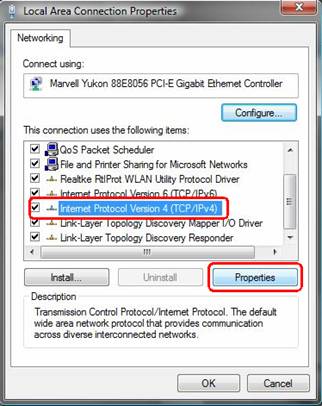
4.Click Properties


Image result for local area connection properties

5.Click TCP/IP


Image result for click tcp


6.Click Properties


Image result for local area connection properties 

  • Obtain an IP Address automatically
  • Use the following IP Address: IP Address, Subnet Mask


7.Click OK


Image result for click tcp ok


IP Configuration

1. Click Start Button
2. Click Run
3. Type cmd
4. Type ipconfig
5. Type Ping (IPaddress)


Source: https://en.wikipedia.org/wiki/Network_address
https://www.apnic.net/get-ip/faqs/what-is-an-ip-address/
https://searchenterprisewan.techtarget.com/definition/IPv6
https://study-ccna.com/classes-of-ip-addresses/

Reformatting a Personal Computer

REFORMATTING  A PERSONAL COMPUTER STEPS TO REFORMAT A  PERSONAL COMPUTER 1. Start your PC and press key F2, F12 or delete key (...